
Philips 10BDL4551T - Sleep Setup
In most cases the Philips 10BDL4551T device can be left plugged-in and permanently awake. Fishbowl sleep can be configured if required, but the Philips scheduler then needs to be set up to wake the device.
Before continuing, please ensure that you have already configured Fishbowl sleep and ensure that your time zone is correctly set on the tablet.
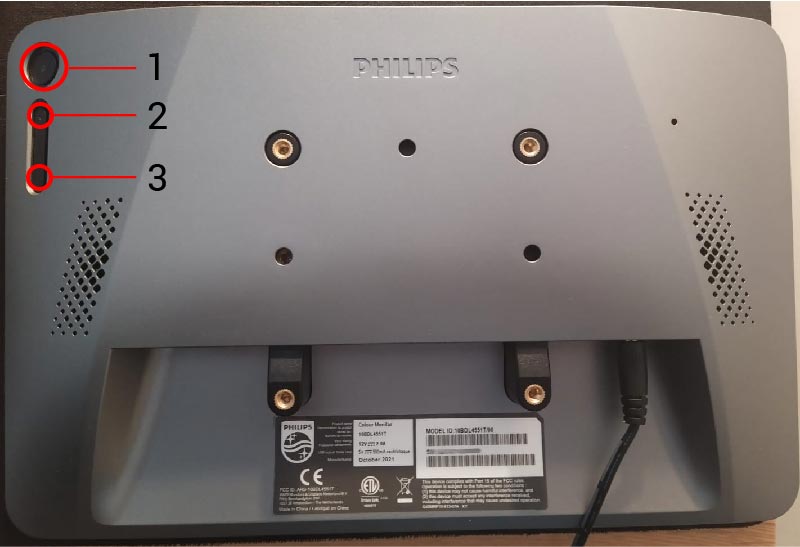
1. Access Main Menu using Hardware Buttons
Access the Main Menu by pressing buttons 1 and 3 together
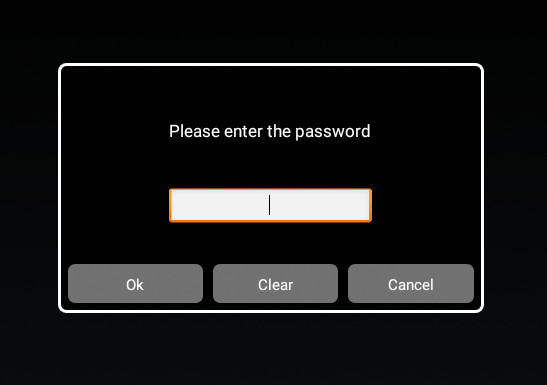
Once you've pressed the two buttons, you need to enter a PIN to unlock the device.
The default PIN is 1234.
2. Access Scheduler settings
- Tap on
Settings. - Tap on
Signage Display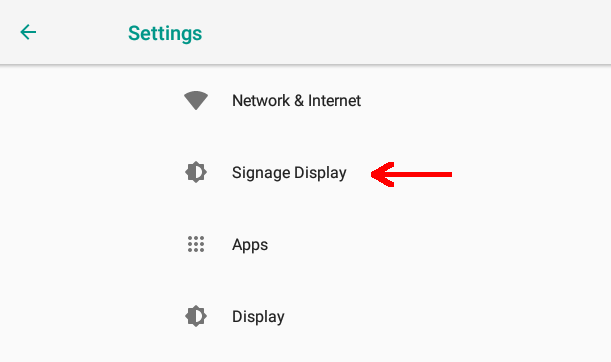
- Tap on
General settings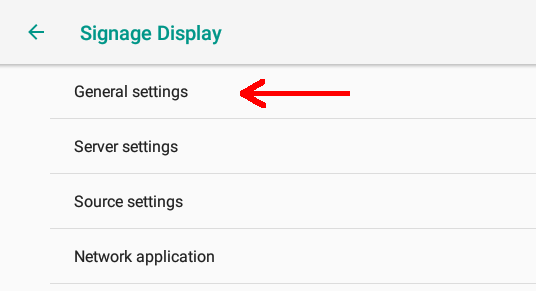
- Tap on
Schedule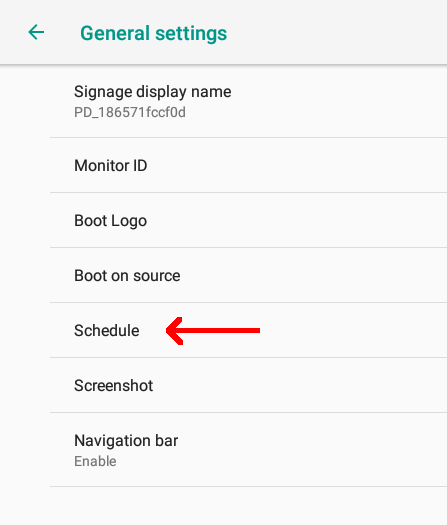
3. Configure scheduler
The scheduler needs to be enabled and set to end 5 minutes after the Fishbowl sleep time and to wake at the time that Fishbowl is configured to wake.
-
Tap on the checkbox to
Enablethe default scheduler (namedSchedule list 1). -
Set the
Start timeto the same time your Fishbowl wake time is configured. -
Set the
End timeto 5 minutes after your Fishbowl sleep time is configured. -
Set the
InputtoCustom app. -
If your Fishbowl is configured to sleep on weekends, then set the
Days of the weektoMonday, Tuesday, Wednesday, Thursday and Friday. -
If your Fishbowl is configured to sleep on weekends, check the box next to
Every Week. -
Tap on
Save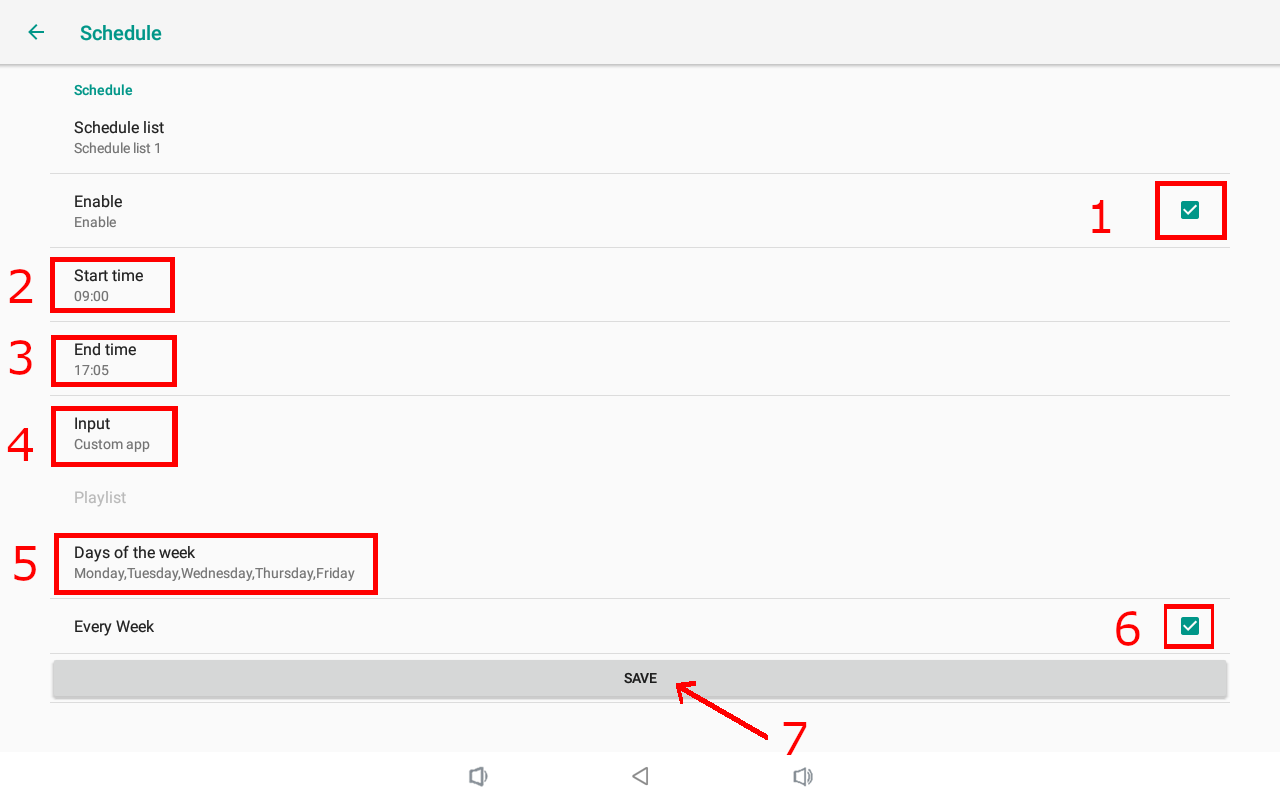
-
Tap the back button until Fishbowl is shown again.

4. Waking the tablet before the wake time
The Philips sleep is a deep sleep, and the tablet cannot be woken in any way except through the configured scheduler above, or through a power cycle.
- Unplug the power to the tablet (either the barrel jack or PoE cable), then plug it back in.
- If Fishbowl starts up during the sleep time, you have a 15 second window to disable sleep. When Fishbowl is about to sleep, you will notice an alert.

- Shortly after that, you can then tap on
Disable sleepto prevent Fishbowl from entering sleep.
- Remember to later re-enable sleep (if required).