
Switch from Microsoft OAuth to App Registration
With Microsoft 365 OAuth (delegated permissions), each device signs in as a user and relies on a refresh token to maintain access. These tokens can be revoked without warning when a password is changed, an admin resets credentials, or a security policy is updated. The only way to recover is to sign in again interactively on each affected device.
App Registration (client credentials) eliminates this problem. The application authenticates with its own credentials rather than acting on behalf of a user, so access is not tied to any individual account and will not break due to user or password changes. You can switch all your devices at once from the Fishbowl web dashboard without needing physical access to any of them.
During the App Registration setup, you have full control over which API permissions are granted to the application in Microsoft Entra. App-only sign-ins are also logged separately from user sign-ins in the Microsoft Entra sign-in logs, making it straightforward for administrators to audit the application's activity.
Switching to App Registration resolves the following Microsoft errors that can occur with OAuth:
AADSTS700082: The refresh token has expired due to inactivity.AADSTS50173: The provided grant has expired due to it being revoked, a fresh auth token is needed. The user might have changed or reset their password.
Before starting, make sure you have completed the Microsoft Entra App Registration setup. You will need the Application (client) ID, Directory (tenant) ID, and Client Secret from that setup.
Steps
-
Open a web browser and log in to your Fishbowl account.
-
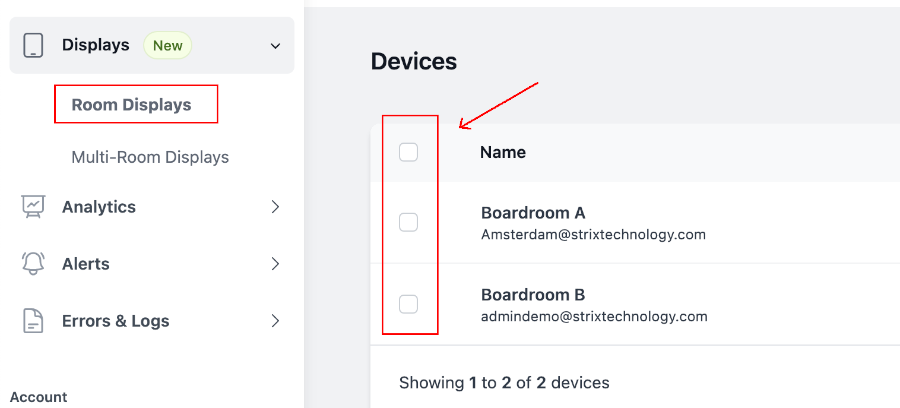
After signing in, you will see a list of all your linked devices. Select the devices that you want to switch by checking their boxes, or click on the empty checkbox in the top left corner to select all.
-
Click on
Edit Selected.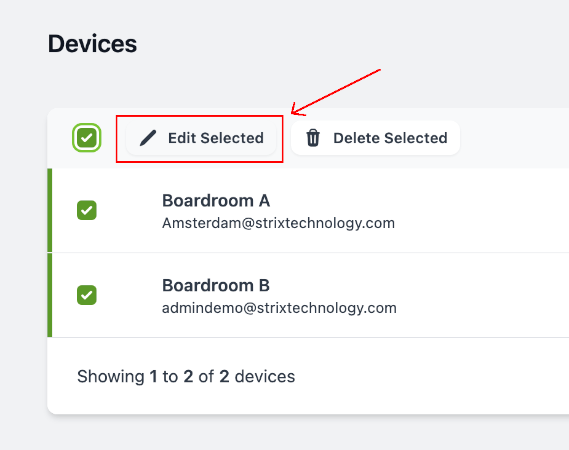
-
In the popup, expand the Calendar section. Check the box next to Calendar Type. It will show the current setting, for example
Microsoft 365 (OAuth / Modern Authentication).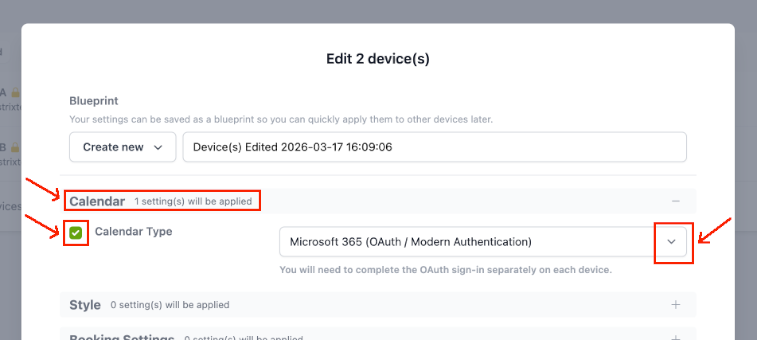
-
Click on the Calendar Type dropdown and select
Microsoft 365 (App Registration).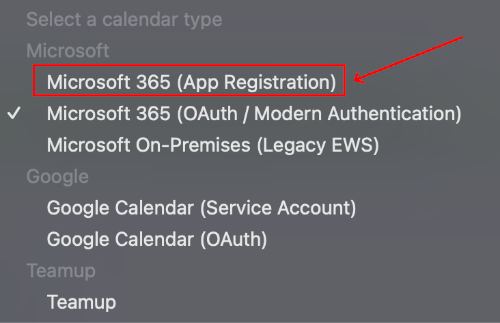
-
An Encrypted Credentials section will appear. Click the
Enter credentialsbutton.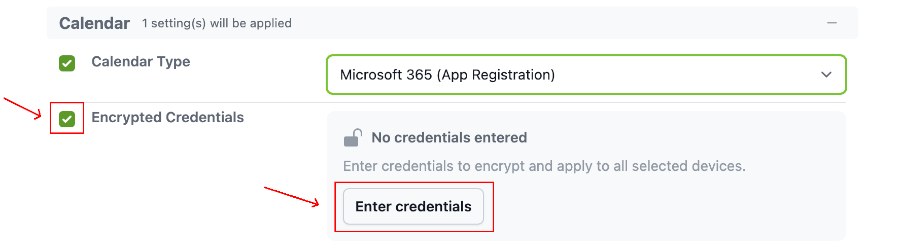
-
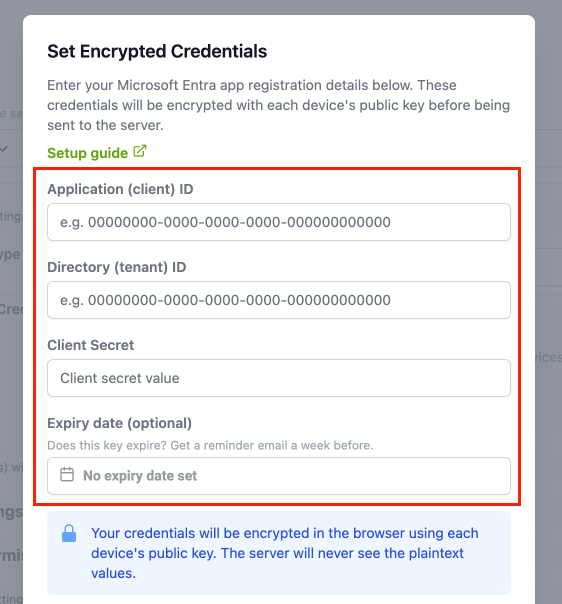
In the Set Encrypted Credentials dialog, enter the following details from your Microsoft Entra App Registration:
- Application (client) ID
- Directory (tenant) ID
- Client Secret
- Expiry date (optional) -- if your client secret has an expiry date, enter it here. Fishbowl will send you a reminder email before the secret expires.
-
Toggle the acknowledgement that the client secret cannot be retrieved later, then click
Save Credentials.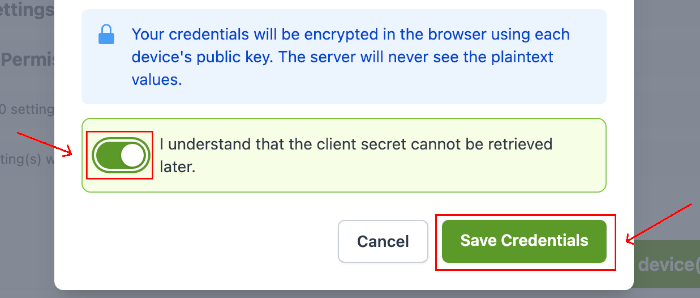
-
The credentials status will update to Credentials encrypted. Click
Apply settings to device(s)to save the changes.
The selected devices will switch to the App Registration authentication method within 2 minutes. No further sign-in is required on the devices.