
User Manual
This manual is for everyday users of a Fishbowl meeting room display - the tablet mounted outside or next to a meeting room. It covers everything you can do from the device itself. If you are an administrator looking to set up Fishbowl, see the Quickstart instead.
The screenshots use the default theme. Logos, colours, and which buttons appear are configured by your administrator, so your room may look different and some options may be hidden.
What you can do at the display
- See whether the room is free or busy right now, and what is coming up next
- Use Now - start a meeting straight away (and optionally name it)
- Extend the current meeting if it is running long
- End Now to release the room before the scheduled end
- Check in to confirm a booking has started
- View any upcoming booking's details
- Book in Future for a later time today or another day (Premium)
The main screen
When you walk up to a display you will see one of two states. In both, the right-hand panel lists upcoming bookings. Bookings are labelled Today and Tomorrow for the next two days, then by date.
When the room is free
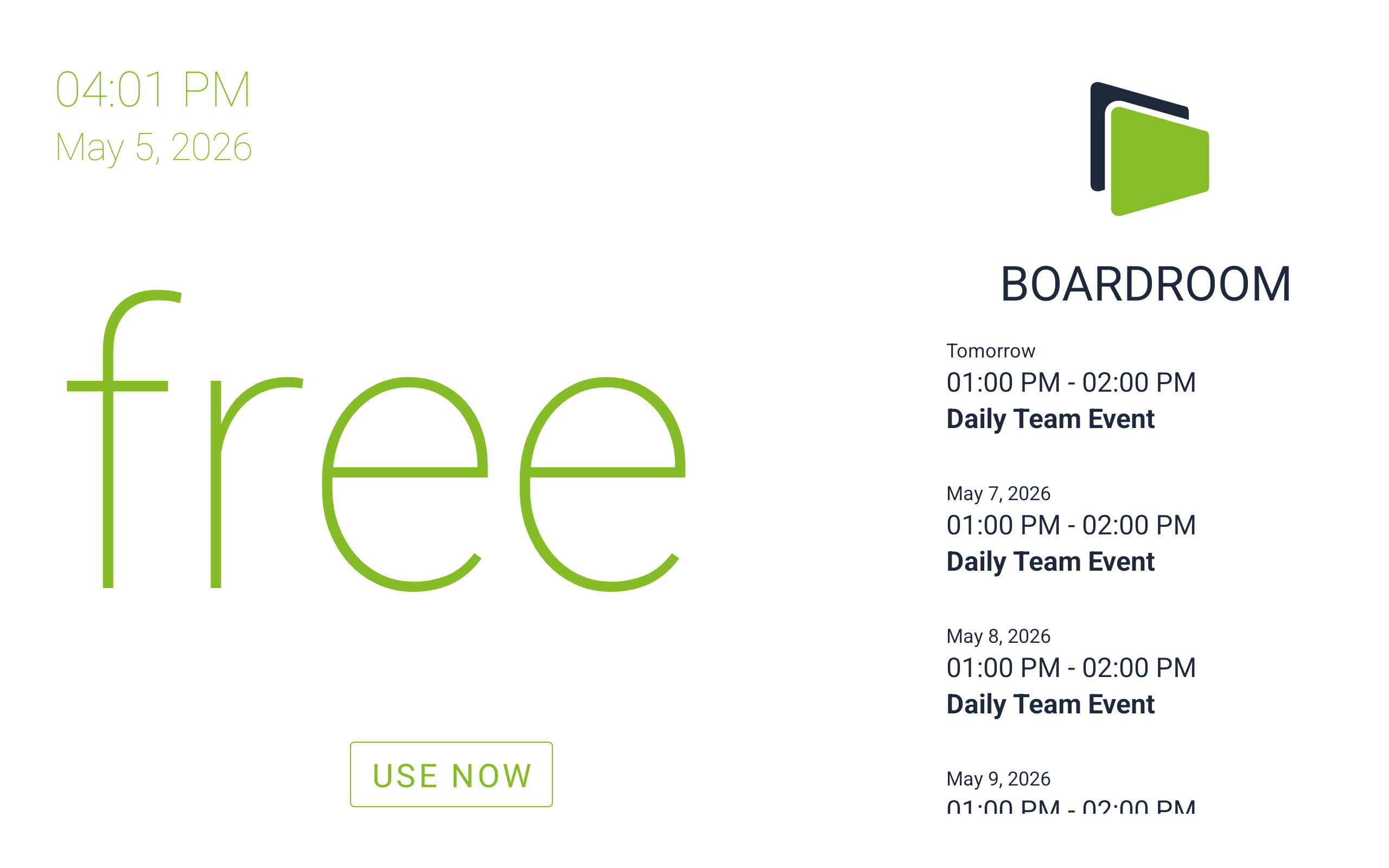
The screen shows a large free label along with the current time and date, the room name, and the room logo. If your administrator has enabled local bookings, a Use Now button appears - tap it to start a meeting on the spot.
When the room is busy
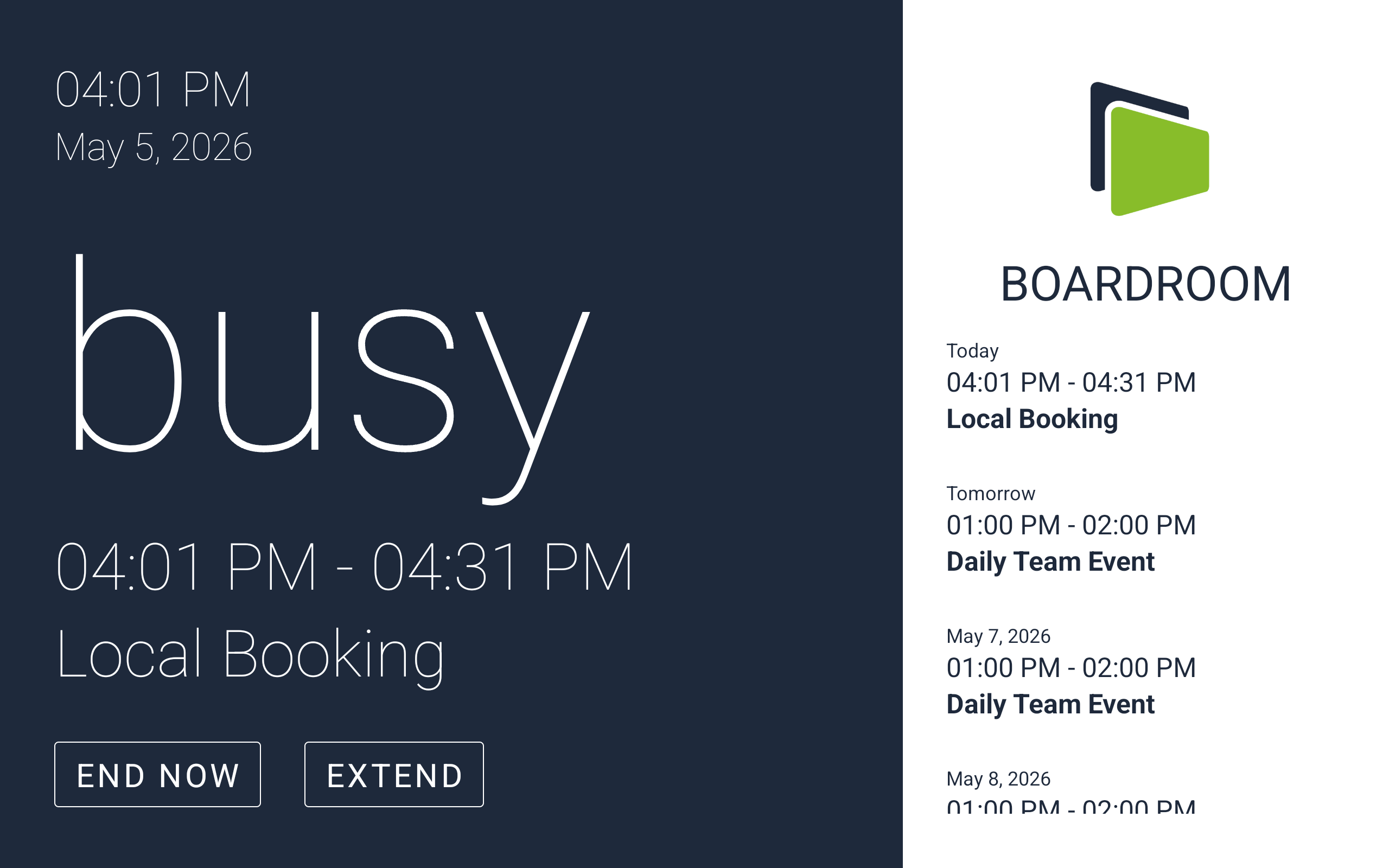
The screen shows busy, the current booking's start - end time, and its title. Depending on your room settings you may also see:
- End Now - free up the room before the scheduled end time.
- Extend - keep the room a little longer.
Use Now - book the room on the spot
Tap Use Now on the free screen to open the quick booking sheet.
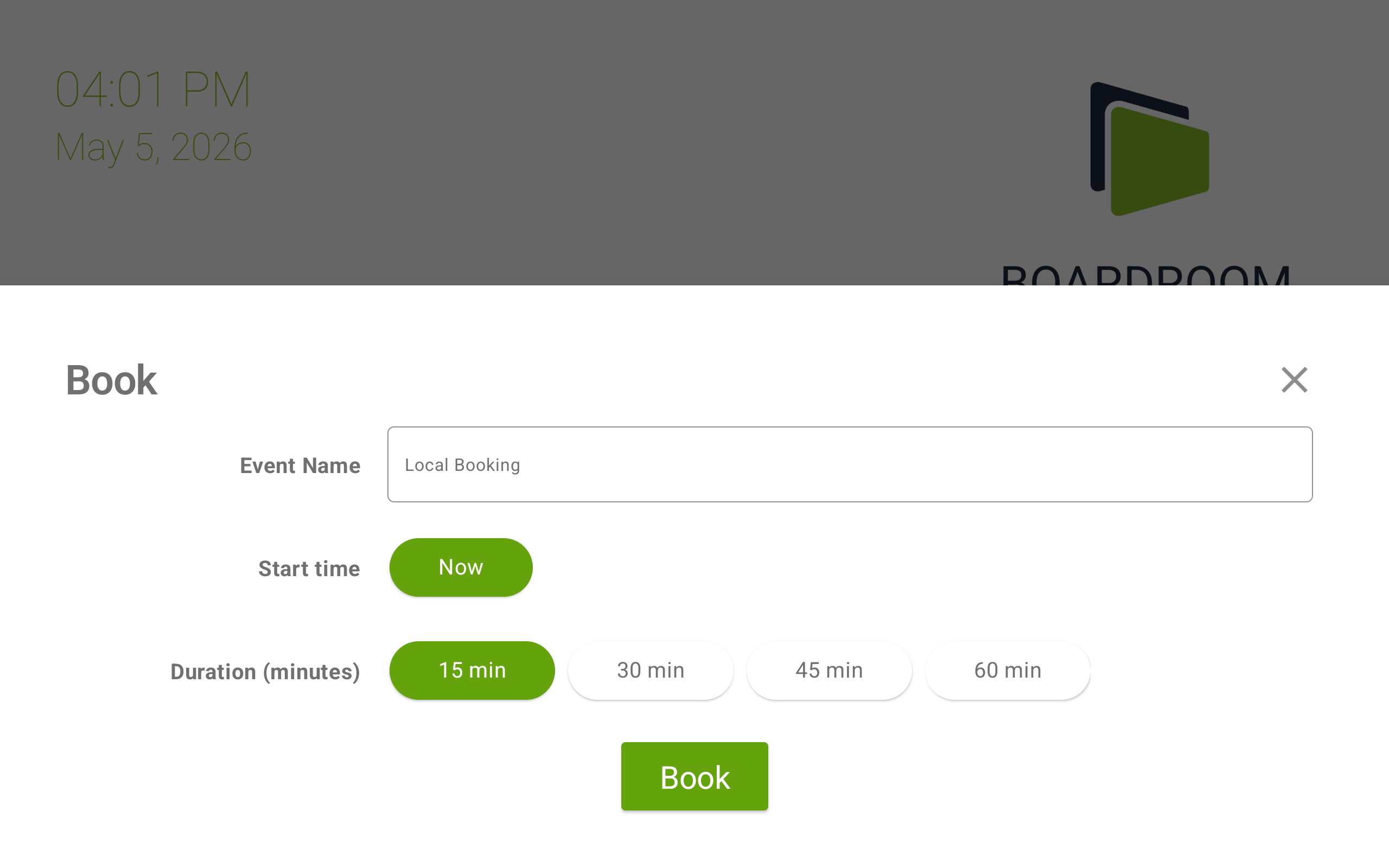
- Optionally type a name in the Event Name field. If you leave it blank, the booking is labelled Local Booking.
- The Start time is set to Now.
- Pick a Duration - 15, 30, 45, or 60 minutes.
- Tap Book.
The room switches to busy and the booking appears in the upcoming list.
The available durations depend on the room's availability - if another booking starts soon, longer durations are hidden so your booking cannot run into the next meeting. Not every option is always shown.
Tap the X in the top right at any time to close the sheet without booking.
Extend a meeting in progress
If your meeting is running long and the room is free afterwards, tap Extend on the busy screen.
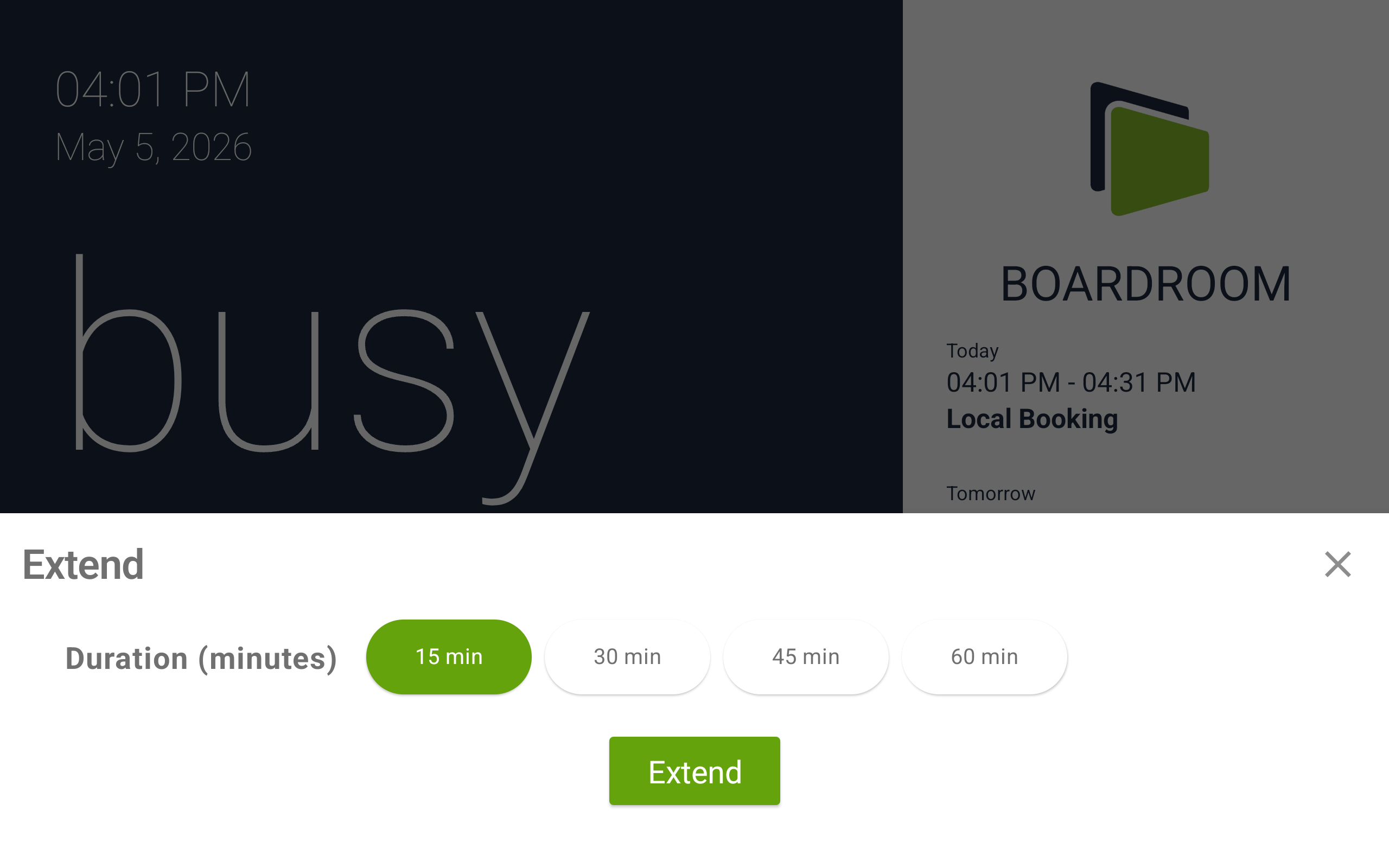
Pick how much extra time you need - 15, 30, 45, or 60 minutes - then tap Extend. The new end time is shown on the busy screen.
As with Use Now, the available durations depend on the room's availability. If another booking starts soon, longer options are hidden so the extension cannot run into the next meeting.
End a meeting early
If you finish before the scheduled end time, tap End Now to release the room for others.
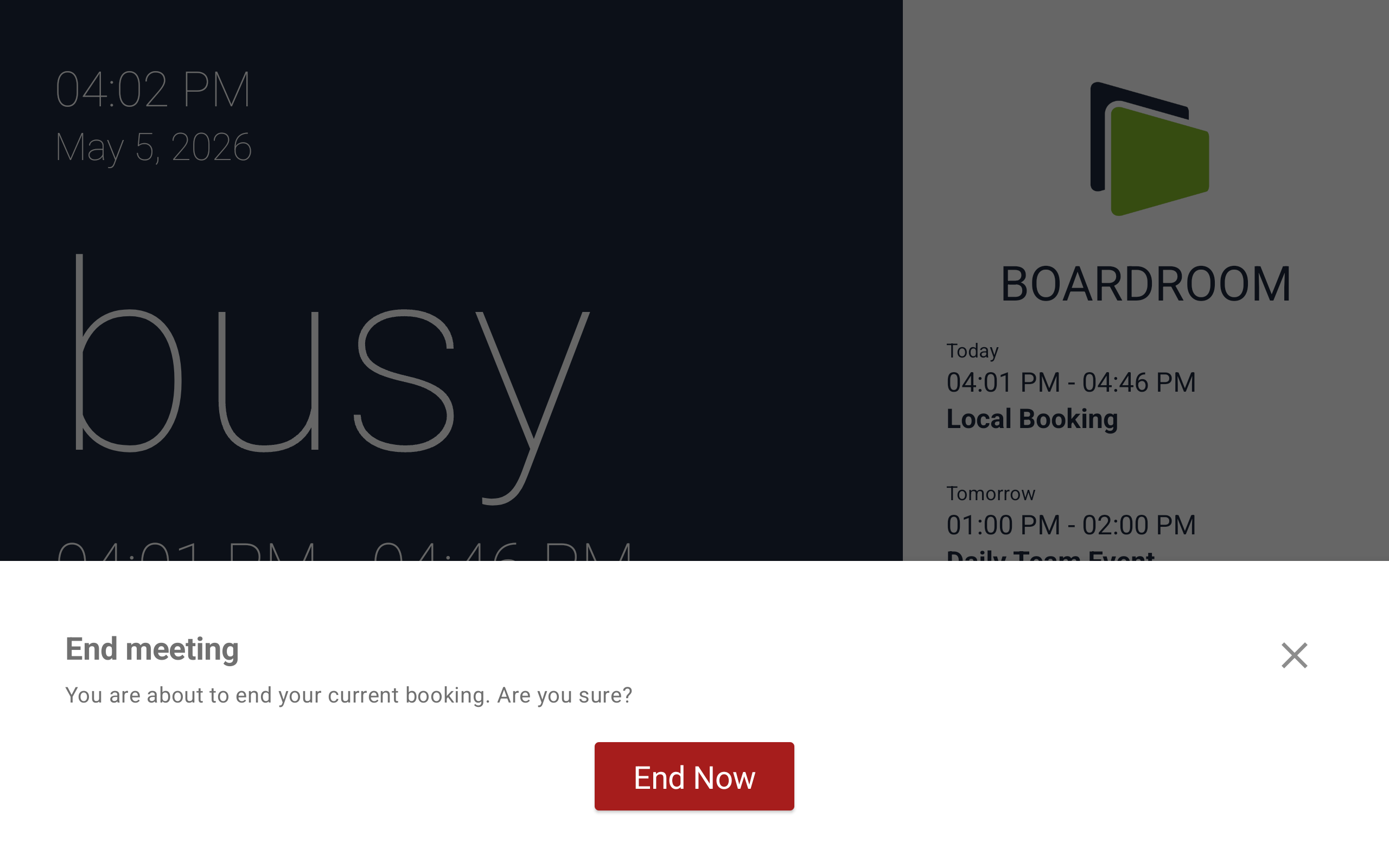
A confirmation appears - tap the End Now button to confirm. The room immediately switches back to free, and any time you gave back becomes available for the next person.
Check in to a booking
Some rooms ask attendees to confirm a booking has actually started. Around the start time of an applicable booking, the display shows a Check in prompt:
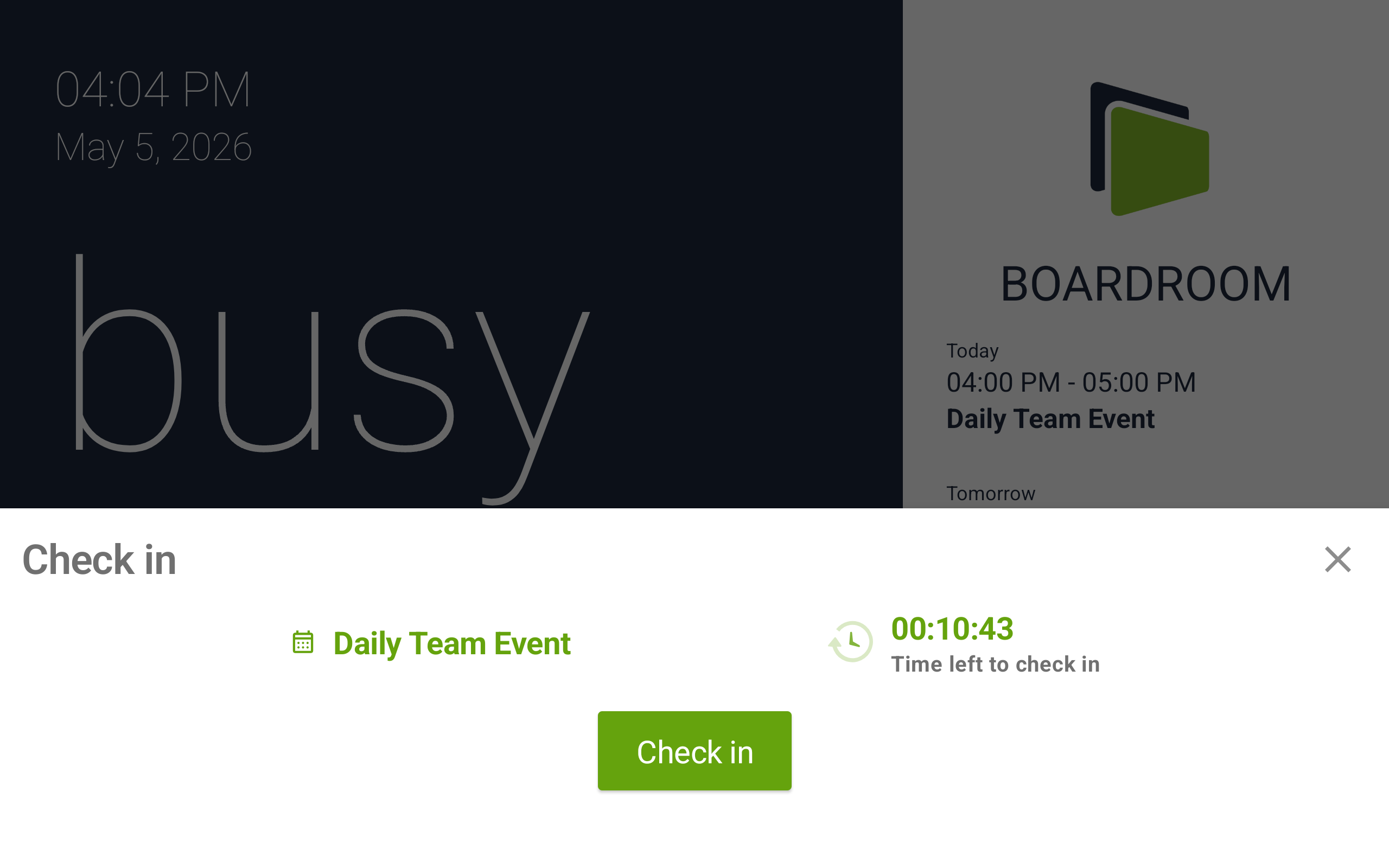
The sheet shows the booking's title and a countdown - Time left to check in - that ticks down to zero. Tap Check in to confirm the meeting is going ahead.
If no one checks in before the timer runs out, the booking is automatically released and the room becomes available again.
View an upcoming booking
Tap any booking in the right-hand list to see its full details.
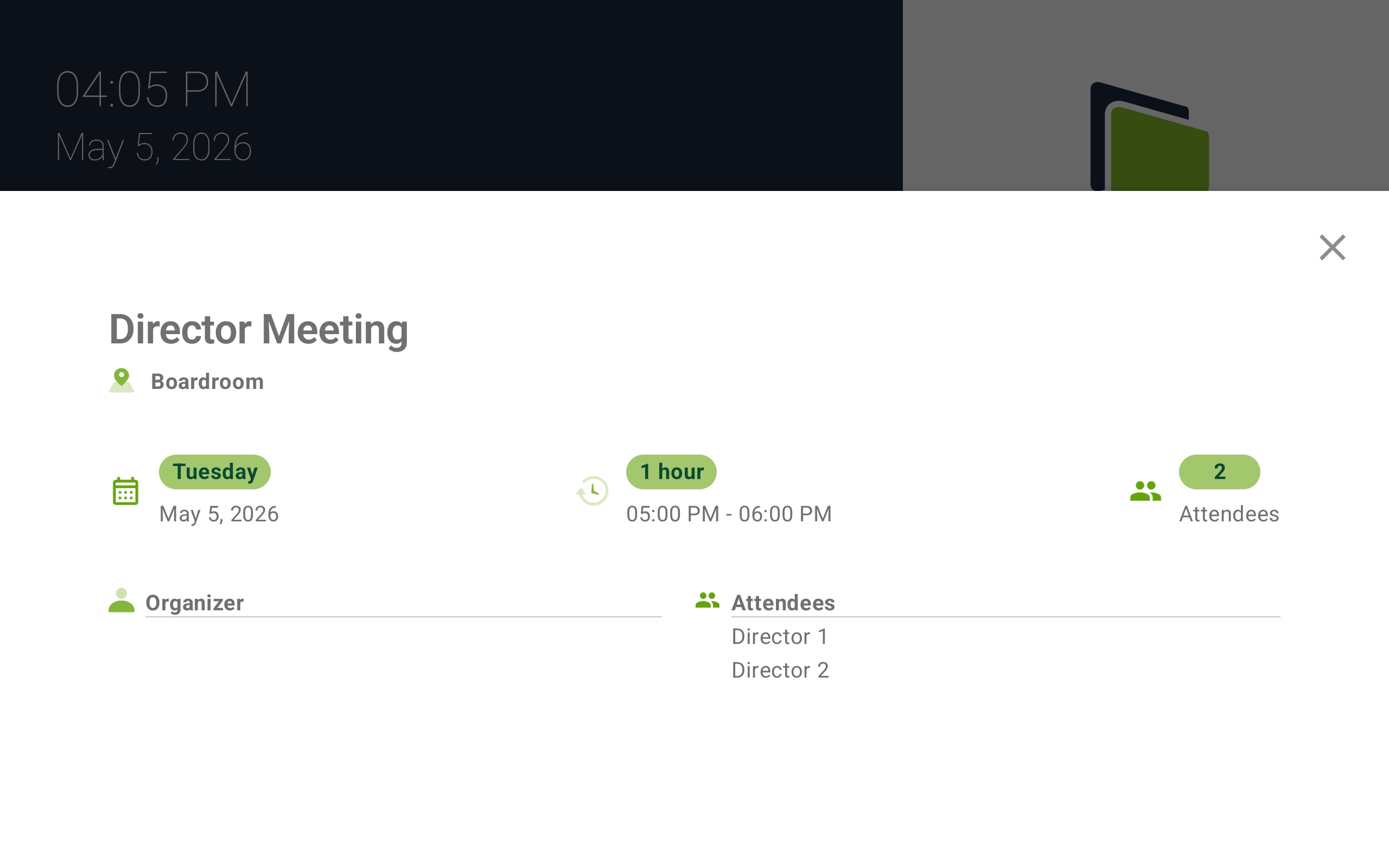
The details panel shows:
- Title of the booking
- Room the booking is for
- Day and date
- Duration and the start - end time
- Organizer and the list of Attendees
Some calendars do not share the organizer or attendee list with the display. If your calendar provider does not return this information, those fields will be blank.
Tap the X in the top right to close the panel and return to the main screen.
Booking a future meeting (Premium)
Premium subscriptions unlock the ability to schedule meetings from the display itself - either later today or on a later day.
Use Now with a custom start time
When future bookings are enabled, the Use Now sheet (see Use Now above) gains extra Other options:
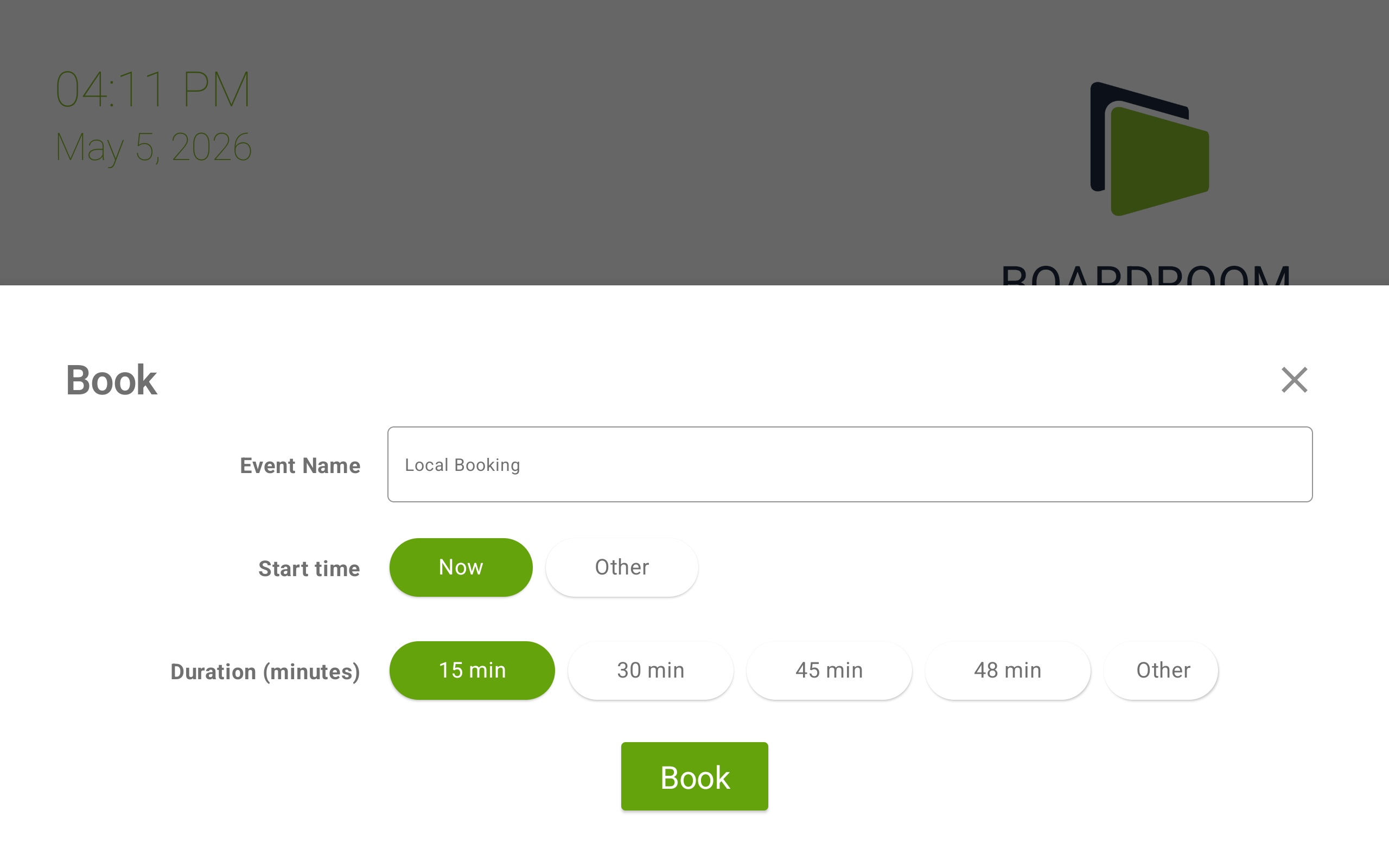
- Tap Other under Start time to pick any time later today.
- Tap Other under Duration to enter a custom number of minutes.
Book in Future
For multi-day scheduling, open the full booking screen to pick any day and time.
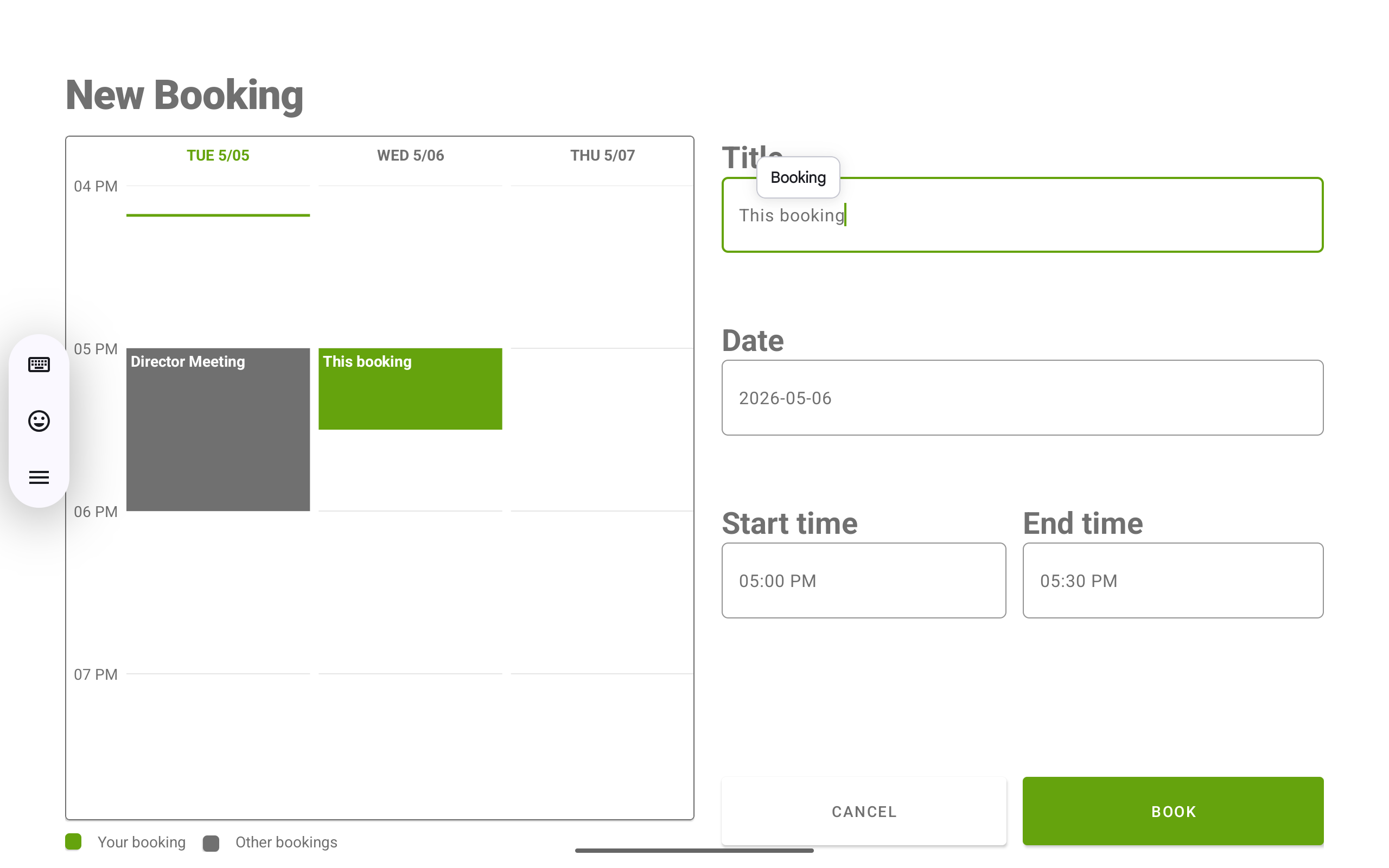
The screen has two halves:
- Left - a calendar view of the next few days. The legend at the bottom shows which blocks are Your booking (the slot you are about to create) and which are Other bookings (already on the calendar). Tap a day tab (e.g. TUE 5/05, WED 5/06) to switch days.
- Right - the booking form:
- Title - the name of your booking.
- Date - the day to book.
- Start time and End time - the time range.
When the details look right, tap BOOK to create the booking. CANCEL discards your changes and returns to the main screen.
If you do not see the Other options or the full booking screen on your device, your room is likely on a non-Premium plan. Ask your administrator about upgrading.
Need help?
If something on the display looks wrong or a button is not behaving as expected, please reach out to your administrator first - they manage the room's settings and calendar. For questions about Fishbowl itself, you can contact our support team.