
Link Devices
New devices need to be linked to your Fishbowl account. There are two ways to do this depending on your device type.
Option A: QR Provisioning (Android with Google Play Services)
For factory-reset Android devices, QR provisioning installs Fishbowl, enables kiosk mode (Device Owner), and links the device to your account automatically.
- Log in to your Fishbowl account and navigate to Add Device.
- Select Provision and link a modern Android device.
- Optionally enter a room name. If you leave it empty, you can scan multiple devices with the same QR code and assign names later.
- Select your Android version and optionally configure Wi-Fi credentials.
- A QR code will appear. Factory reset the device, tap the same spot 6 times on the welcome screen, and scan the QR code.
- The device will download and install Fishbowl, set it as Device Owner, and link to your account automatically. It will appear in the list below the QR code.
- If the device does not appear automatically, expand Device not appearing? and enter the linking code shown on the device to link it manually.
- When all devices are linked, click Link Devices to Account to continue with the setup wizard.
Tip: When no room name is entered, the QR code can be reused for multiple devices. This is ideal for fleet deployments where you want to scan 10+ devices with the same QR code and assign room names during the setup wizard.
Option B: Linking Code (iOS, Amazon Fire, or Android)
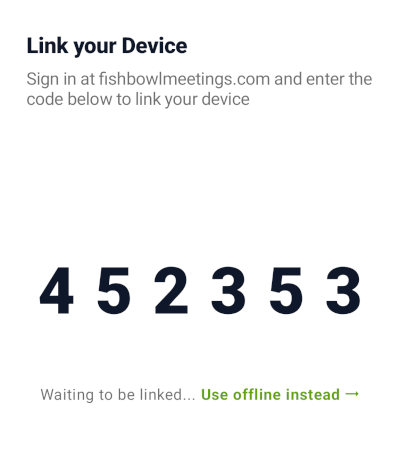
For devices that already have Fishbowl installed, you can link them using a six-digit linking code.
- Install the Fishbowl app from the Play Store, App Store, Amazon Store, or download the Android APK and follow the manual installation instructions.
- Open the app. A six-digit linking code will appear on the screen.
- Log in to your Fishbowl account on a computer and navigate to Add Device.
- Select Link another device.
- Enter the linking code and a room name, then click Add Device.
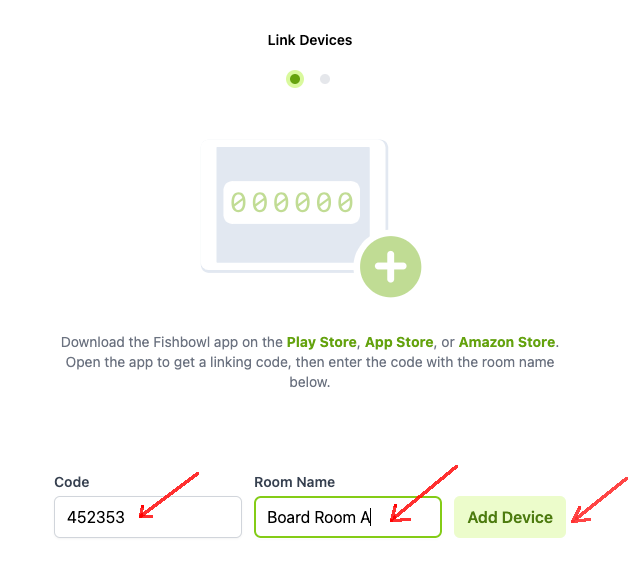
- You can link multiple devices at the same time. Keep entering codes and pressing Add Device to add more. Settings only need to be configured once and will be applied to all devices.
- When all devices are linked, click Link Devices to Account to continue.
Tip: To lock these devices to Fishbowl, set up Kiosk Mode on Android or Guided Access on iPad.
After Linking
A confirmation screen will be shown. If you have a paid account, a quotation will be displayed and you may need to agree to additional charges on your subscription. Click Confirm to add the devices to your account. Read more about subscription quantity.
Your devices are now ready to configure. The setup wizard will guide you through calendar configuration, branding, and other settings. These settings are applied to all devices you just linked.
Follow the instructions for your calendar type: Microsoft 365 | Google Workspace | Microsoft Exchange | Gmail | Teamup