
Manual Android Installation
If you cannot install Fishbowl from the Google Play Store or Amazon Appstore, you can download and install the APK manually. This applies to devices without Google Play Services, older Android devices, or restricted environments.
1. Download the APK
- Open the browser on the device and go to files.fishbowlmeetings.com.
- Tap Download fishbowl_latest.apk under Latest stable release to save the APK. The page also lists older versions and changelogs.
The latest release requires Android 4.4 (API level 19) or newer. Supported panels include:
- Philips 10BDL5051T, 10BDL4551T, 10BDL4151T, and 10BDL3051T
- iAdea XDS-1088-H
- SMT1019 Smart Home Control Panel
See our device requirements for more details. Contact us if you have an incompatible device.
Note: For Android 7+ devices with Google Play Services, consider using QR provisioning instead. It installs the app, enables kiosk mode, and links the device to your account in one step.
2. Enable Unknown Sources
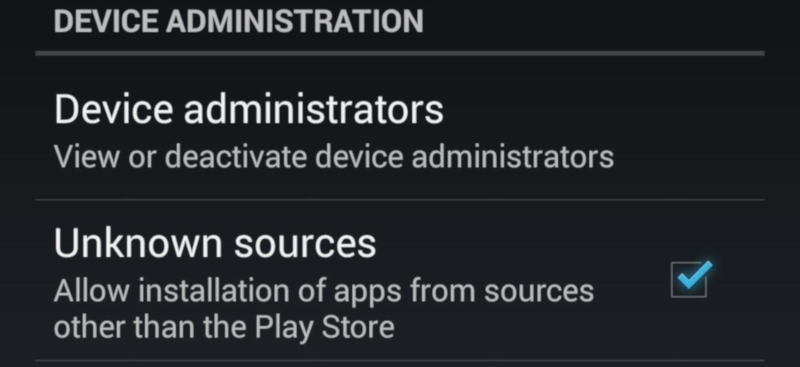
Before installing, you need to allow the installation of apps from unknown sources.
- When you open the downloaded APK, a warning dialog will appear. Tap Settings.

- Enable the checkbox or toggle to allow installation from unknown sources.
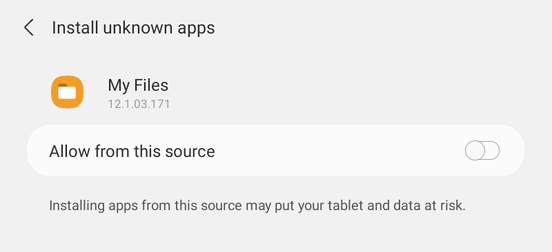
You can also reach this setting via Android Settings > Security (the exact location varies by device and Android version).
3. Install the APK
- Open the downloaded APK. If the download notification has disappeared, open the file browser and navigate to the Downloads folder.
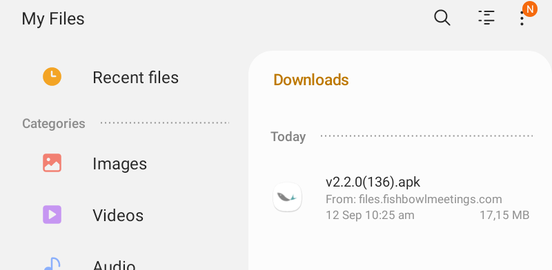
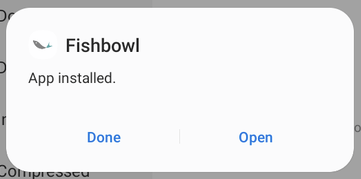
- Tap Install and wait for the installation to complete.

- Tap Open to start Fishbowl.
Next Steps
Once installed, Fishbowl will display a six-digit linking code. Follow the instructions in Link Devices to link the device to your account.