
Error Alerts
Your device syncs events with your calendar provider (e.g. Microsoft or Google). This communication happens directly between each device and your calendar provider.
If an error occurs that prevents your device from syncing events, then your device will enter an error state, and will no longer display the room status. You will receive an email when your device enters an error state, if error alerts are enabled.
Error alerts are available to all subscription plans, and are enabled by default.
Please ensure that your devices have been updated to the following minimum versions that support error alerts:
Android 2.8.0iOS 2.2.0
Configure error alerts
- Open a web browser (on a computer) and Log in to your Fishbowl account.
- Click on
Alertsin the menu on the left. - The following options can be configured:
Enable Error Alerts- ToggleONto receive emails when one or more devices enter an error state (default isON).Send Alerts To- Enter an additional email address that should receive error alerts. This will be in addition to the email sent to the administrator's account email address.Only send to this address- No longer receive error alerts at the administrator's email address. InsteadONLYreceive emails at the address configured in (3.2) above.Enable Alerts When Error Resolved- Receive an email alert once the error has been resolved (i.e. once the device exits the error state and resumes syncing of events).
Debugging errors
- When you receive an error alert, you can click on the
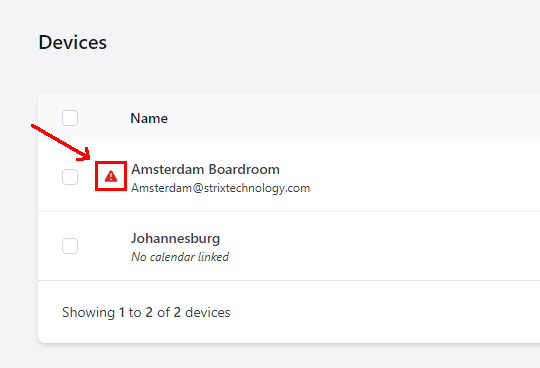
View Devicesbutton in the email, or you can Log in to your Fishbowl account manually. - A device in an error state has a red warning icon on the left of the device name. Click on the device name to view the device.
- Under
Statusclick onError Details.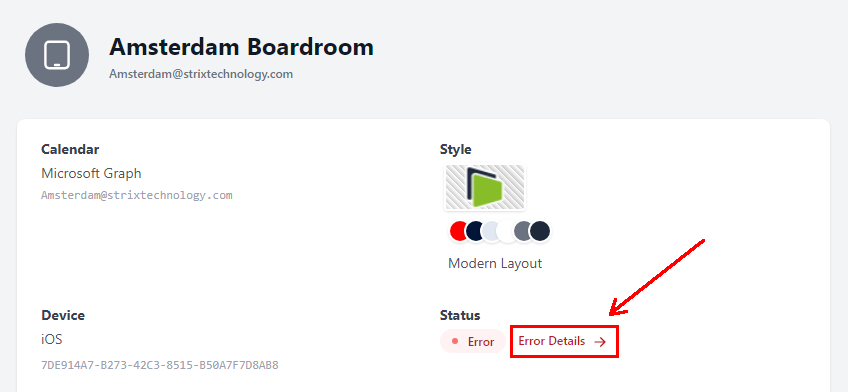
- This will open the
Log Inspector, where you can view solutions or submit a support request. View more details about the Log Inspector