
Gmail Configuration
Note: The following instructions are only applicable to personal (free) Gmail accounts. For Google Workspace (previously GSuite), please refer to our Google Workspace documentation.
1. (Optional) Create a new Personal Google account for each meeting room
If you do not yet have a Google account set up for your meeting room, go to the Google Signup page and follow the prompts to create a new account.
Please note that when signing in with a Google account in Fishbowl for Android, then this account is automatically linked to Gmail and other Google apps on the tablet.
2. Configure Fishbowl
- When configuring Fishbowl, on the
Select Calendar Typepage, selectGoogle. - Tap on the Google
Sign inbutton. Select your account from the list, or select theAdd accountoption. - When asked, allow Fishbowl access to Manage your calendar, and tap
Next. - On the
Select a Roompage, select your email address. It should be the only option in the list. TapNext
3. Share access to each meeting room with your colleagues
If you would like to allow others to view or book events on this calendar outside of the Fishbowl app, you have two options: sharing it with individual people (recommended), or making it public with a shareable link.
-
Open a web browser on a computer and sign in with the Google account of the meeting room that you created in step (1).
-
Navigate to Google Calendar
-
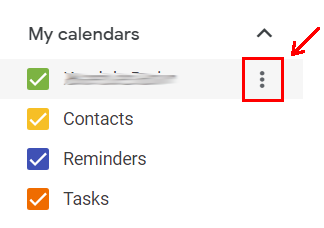
Hover over the Google user's name in
My calendarsin the menu on the left. -
Click on the three vertical dots that appear to the right of the calendar, to access the calendar options.
-
Click on
Settings and sharing.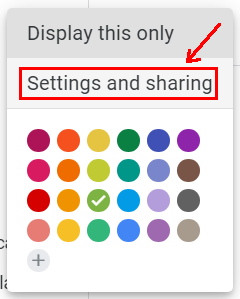
3.1 Share with specific people (recommended)
- Scroll to the
Share with specific people or groupssection. - Click on
Add people and groups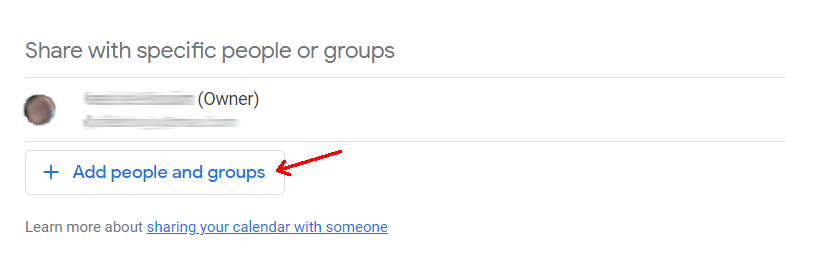
- In the popup that appears, enter the email address of the person you would like to share it with
- Under
Permission, selectMake changes to eventsif the person should be allowed to make bookings, ORSee all event detailsif the person should not be allowed to create bookings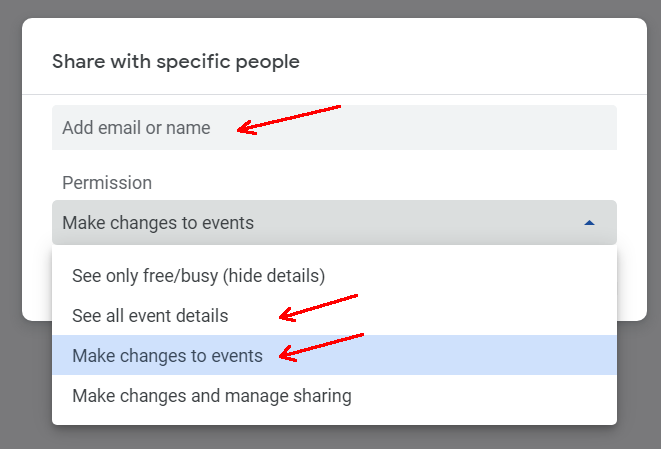
3.2 Make public and share link (not recommended)
- Scroll to
Access permissions for events - Click on
Make available to publicand then click onGet shareable link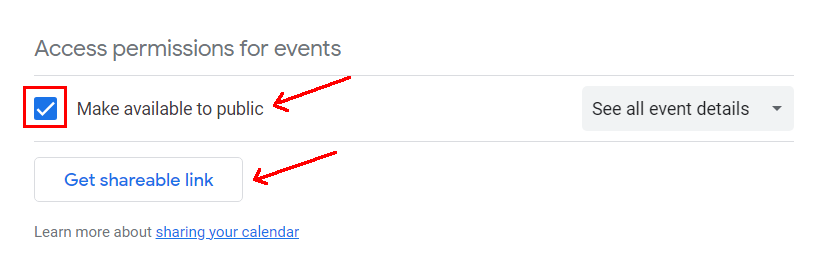
- Click on
Copy linkand share this link with other Google users to add it to their Google Calendars.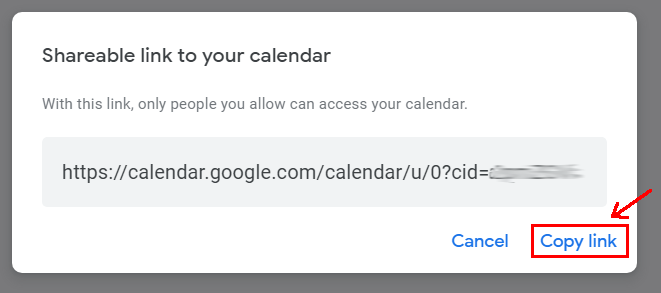
For more information, you can refer to the relevant Google documentation.