
Microsoft 365: OAuth / Modern Authentication (Delegated Permissions)
This method uses OAuth 2.0 with delegated permissions. You sign in with a Microsoft account directly on each device, and Fishbowl accesses the calendar on behalf of the signed-in user.
You will need to sign in on each device with a user that has access to the Room Mailbox's calendar. There are two ways to achieve this:
- Sign in as the Room Mailbox itself. Set a password for the Room Mailbox and sign in with its email address and password. This is the simplest option.
- Sign in as an existing user with delegated access. Grant an existing user Full Access to the Room Mailbox's calendar, then sign in with that user's credentials.
Before starting, make sure you have a Room Mailbox set up. See Microsoft 365 Configuration for instructions.
Option A: Sign in as the Room Mailbox
The easiest approach is to set a password for the Room Mailbox and sign in with its email address directly. This will not affect your existing bookings. By default, the Room Mailbox password is set to a random value, so it is safe to change.
- Log into the Microsoft 365 admin center with an Administrator account.
- Select
Users > Active usersfrom the menu on the left.
- Click on the Room Mailbox.
- Click on the
Reset a Passwordbutton (the "key" icon).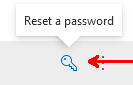
- Make sure that all checkboxes are unticked / not selected, then enter a password.

- Click on
Reset password.
Option B: Delegate access to an existing user
If you prefer to sign in with an existing user account instead of the Room Mailbox itself, you need to grant that user Full Access to the Room Mailbox's calendar.
Please note that it can take up to 5 minutes for the settings to take effect.
-
Log into the Microsoft 365 admin center with an Administrator account.
-
In the menu on the left, click on
Show all.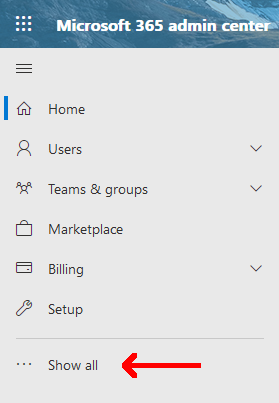
-
Expand the
Resourcesmenu item, and click onRooms & Equipment.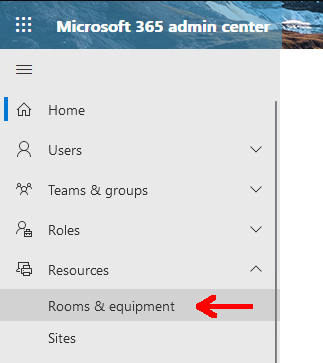
-
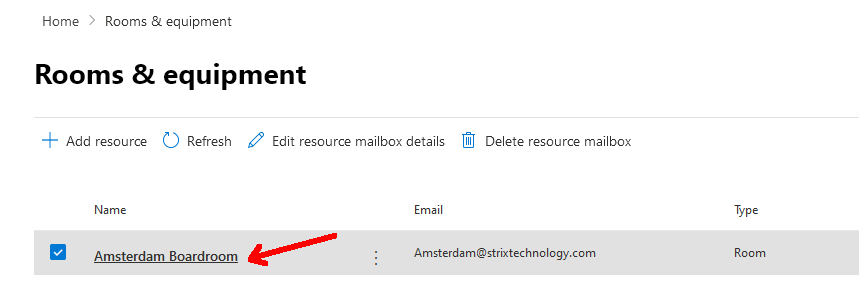
Click on the name of the resource (i.e. the meeting room name).
-
A menu will appear on the right. Click on
Edit Exchange settings.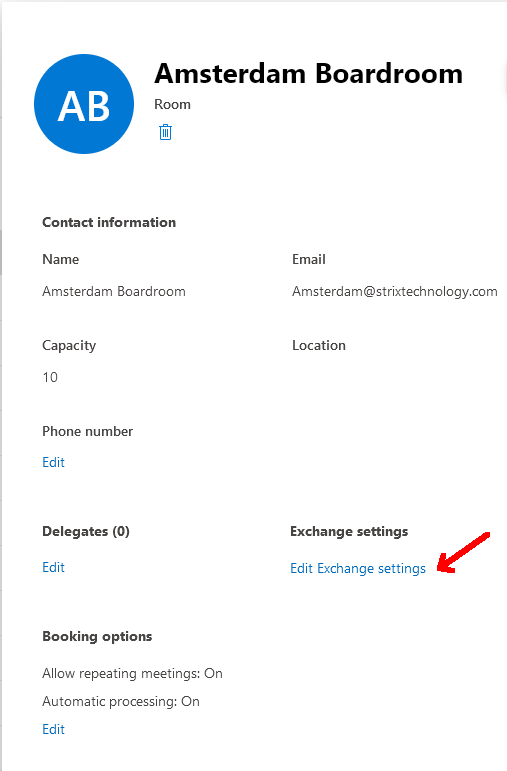
-
The Exchange Admin Center will launch. In the window on the right that opens, click on
Delegation, scroll down toRead and manage (Full Access)and click onEdit.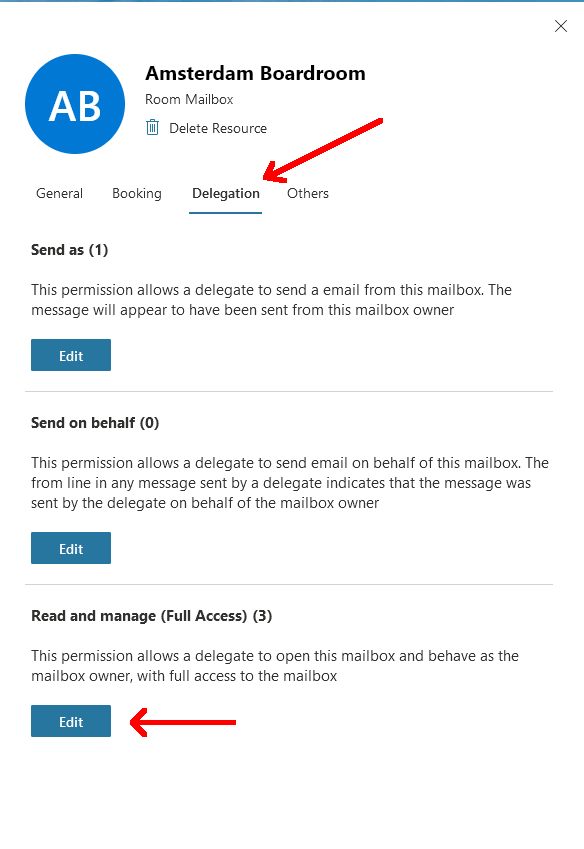
-
Click on
Add members.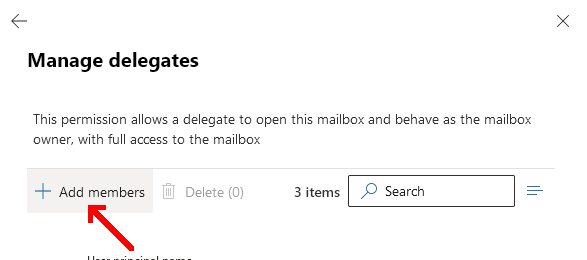
-
Select the user that you will give access to the room, and click
Save.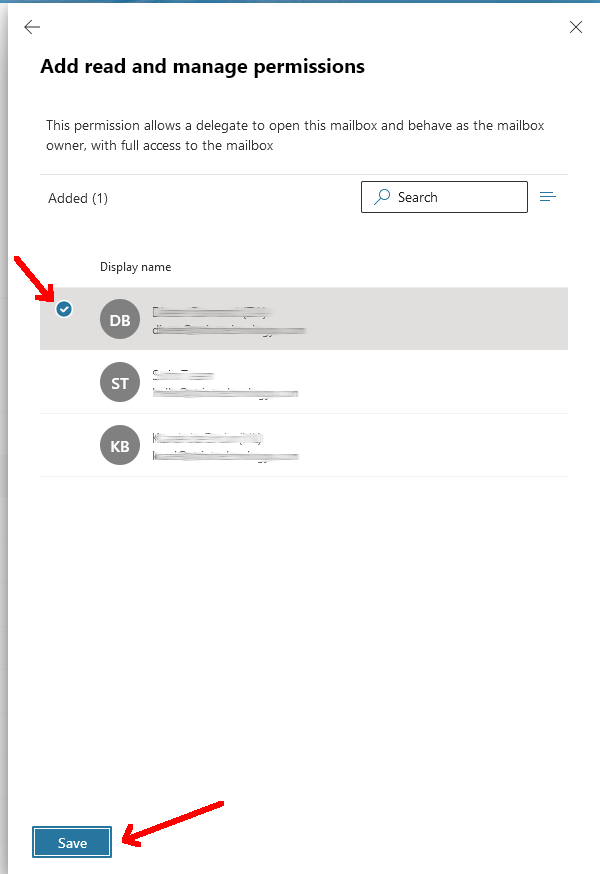
Configure Fishbowl
- When linking devices on the Fishbowl web dashboard, select
Microsoftas the calendar type. - Select
Log in with Microsoft on Deviceas the authentication method. - On each device, sign in using the email address and password of the Room Mailbox (Option A) or the delegated user (Option B).
- On the
Select a Roompage, your Room Mailbox should already be selected. If you signed in with a delegated user, you can search for a specific room. Tap on Next.