
Google Workspace: OAuth (Sign in on Device)
This method uses OAuth 2.0 with delegated permissions. You sign in with a Google account directly on each device, and Fishbowl accesses the calendar on behalf of the signed-in user.
You will need a Google Workspace user with Make changes to events permission on each room calendar resource.
Before starting, make sure you have Calendar resources set up. See Google Workspace Configuration for instructions.
Note: When signing in with a Google account in Fishbowl for Android, this account is automatically linked to Gmail and other Google apps on the tablet. If this is a security risk in your organization, then please ensure that you create a separate Google account for this purpose, install an appropriate Android kiosking app to prevent access to these apps, or use iPads instead.
1. Grant permissions to a user
You need to log in with a Google user on the Fishbowl tablet. This user needs to have Make changes to events permissions to each of the resources, but does not need to be an Administrator.
- Go to the Google Calendar web portal while logged in as administrator.
- Click on the
+next toOther calendars.
- Click on
Browse resources.
- Select (tick the box) next to every resource that you need. This can be multiple calendars if you would like to use Fishbowl for multiple rooms.
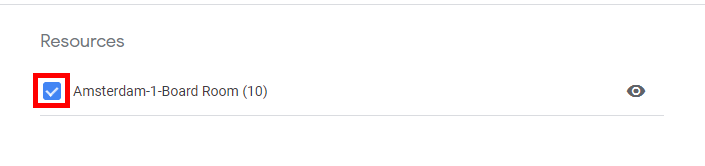
- For each calendar that you added, perform the following steps:
- Expand the calendar on the left and click on
Calendar settings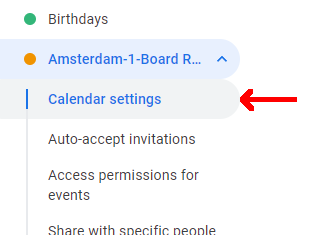
- Scroll down to
Share with specific peopleand click on+ Add people.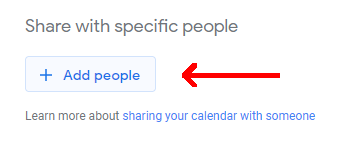
- Enter the email address of the user that you will log in with on the tablet (not an administrator), and select
Make changes to eventsunderPermissions.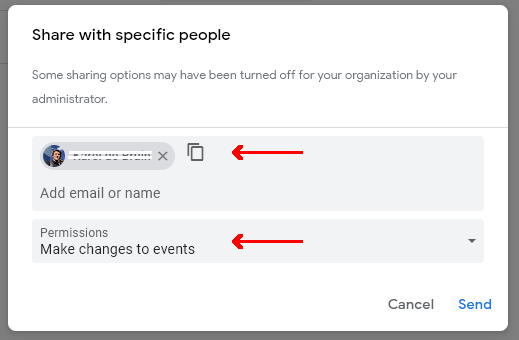
- Click on
Send
- Expand the calendar on the left and click on
Note: For more information, visit the Google Help Page.
2. Add resources to "Other Calendars"
By default, the calendars that you assigned to the user will not be visible in the calendar list of the user. You need to first add them to the user's Other calendars list.
- Go to the Google Calendar web portal while logged in as the user that you will sign in with on the tablet.
- Click on the
+next toOther calendars. - Click on
Browse resources. - Select (tick the box) next to every resource that you need. This can be multiple calendars if you would like to use Fishbowl for multiple rooms.
3. Configure Fishbowl
- When linking devices on the Fishbowl web dashboard, select
Googleas the calendar type. - Select
Sign in on Deviceas the authentication method. - On each device, tap the Google
Sign inbutton. Select the account that was granted permissions in the steps above, or selectAdd accountto add it. - When asked, allow Fishbowl access to manage your calendar, and tap
Next. - On the
Select a Roompage, select the appropriate resource from the list. TapNext.